
How to Post Sales Invoices to ZATCA (Phase Two) in Smart Pro ERP
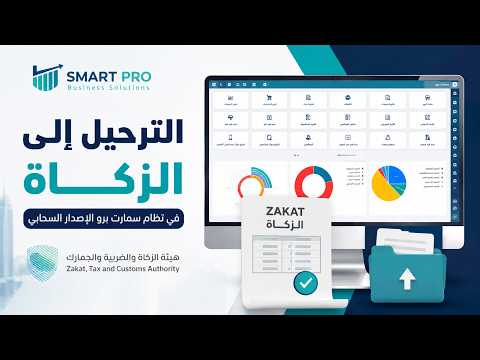
How to Post Sales Invoices to ZATCA (Phase Two) in Smart Pro ERP
Posting sales invoices to the Zakat, Tax and Customs Authority (ZATCA) is one of the most important procedures that helps establishments comply with the requirements of Phase Two of e-invoicing (integration and linking phase).
In this guide, you will learn how to post sales invoices using Smart Pro ERP - Cloud Version, along with the key requirements and steps needed to ensure a successful posting process.
Table of Contents
- What is posting sales invoices to ZATCA?
- Objectives of posting sales invoices.
- Requirements for posting to ZATCA.
- Steps to post sales invoices.
- Smart Pro features.
- Watch the video explanation.
- Frequently asked questions.
- Conclusion.
What is posting sales invoices to ZATCA?
Posting sales invoices is the process of sending electronic invoices issued from the Smart Pro ERP system to the Zakat, Tax and Customs Authority (ZATCA) in accordance with the requirements of Phase Two (integration and linking phase), so that invoice data is synchronized with the systems approved by the Authority.
Objectives of invoice posting
• Comply with the requirements of the Zakat, Tax and Customs Authority.
• Submit invoices electronically in the correct manner.
• Reduce manual errors.
• Ensure invoice data is preserved.
• Facilitate review and audit processes.
Requirements for posting to ZATCA
Before starting the posting process, make sure the following requirements are met:
- Register establishment data correctly.
- Complete customer data.
- Issue an approved electronic invoice.
- Verify the tax number.
- The system is connected to the internet.
- Enable integration with ZATCA.
Note
Verifying invoice data before posting reduces the likelihood of rejection by ZATCA.
Steps to post sales invoices in Smart Pro
Smart Pro makes the posting process easy through the following steps:
First: Issue the sales invoice
Issue the sales invoice, then make sure all data is correct before saving it.
Second: Review invoice data
Review the following data before posting:
• Customer data.
• Tax number.
• Items.
• VAT amount.
• Total invoice amount.
Third: Execute the posting process
From the sales invoices screen, select the invoice to be posted, then click "Post to ZATCA". The system will send it electronically according to the requirements of Phase Two.
Fourth: Verify successful posting
After the sending process is completed, the system displays the invoice status, helping confirm that it was successfully sent to ZATCA.
Features of invoice posting in Smart Pro
Smart Pro provides many advantages, including:
• Direct electronic posting to ZATCA.
• Full compliance with Phase Two (integration and linking phase).
• Fast invoice transmission.
• Tracking invoice status after sending.
• Reducing manual errors.
• Easy and fast user interface.
• A cloud-based system that can be used from anywhere.
Watch the video explanation
The following video explains how to post sales invoices to ZATCA using Smart Pro ERP, with a practical demonstration of all implementation steps.
Frequently asked questions
Does Smart Pro support Phase Two of e-invoicing?
Yes, the system supports the requirements of the integration and linking phase, and allows sales invoices to be posted electronically to ZATCA.
Can the invoice status be known after posting?
Yes, the system displays the status of each invoice after it is sent, which helps follow up on the success of the posting process.
Does posting require manual intervention?
No, the posting process is carried out from within the system in simple and quick steps.
Conclusion
Smart Pro ERP helps establishments easily post sales invoices to ZATCA while complying with the requirements of Phase Two of e-invoicing (integration and linking phase). It also allows tracking invoice status after sending, ensuring fast completion, data accuracy, and compliance with the systems of the Zakat, Tax and Customs Authority.
Liked this guide?
Try SmartPro on your own data.
Live demo in 30 minutes, with no commitment.