
Free Journal Entry Excel Template, Ready to Download
A ready-made journal entry Excel template with formulas that check the balance automatically. It includes a journal sheet, a starter chart of accounts and a worked example, and works in any version of Excel.
Author:سامي الحيدري
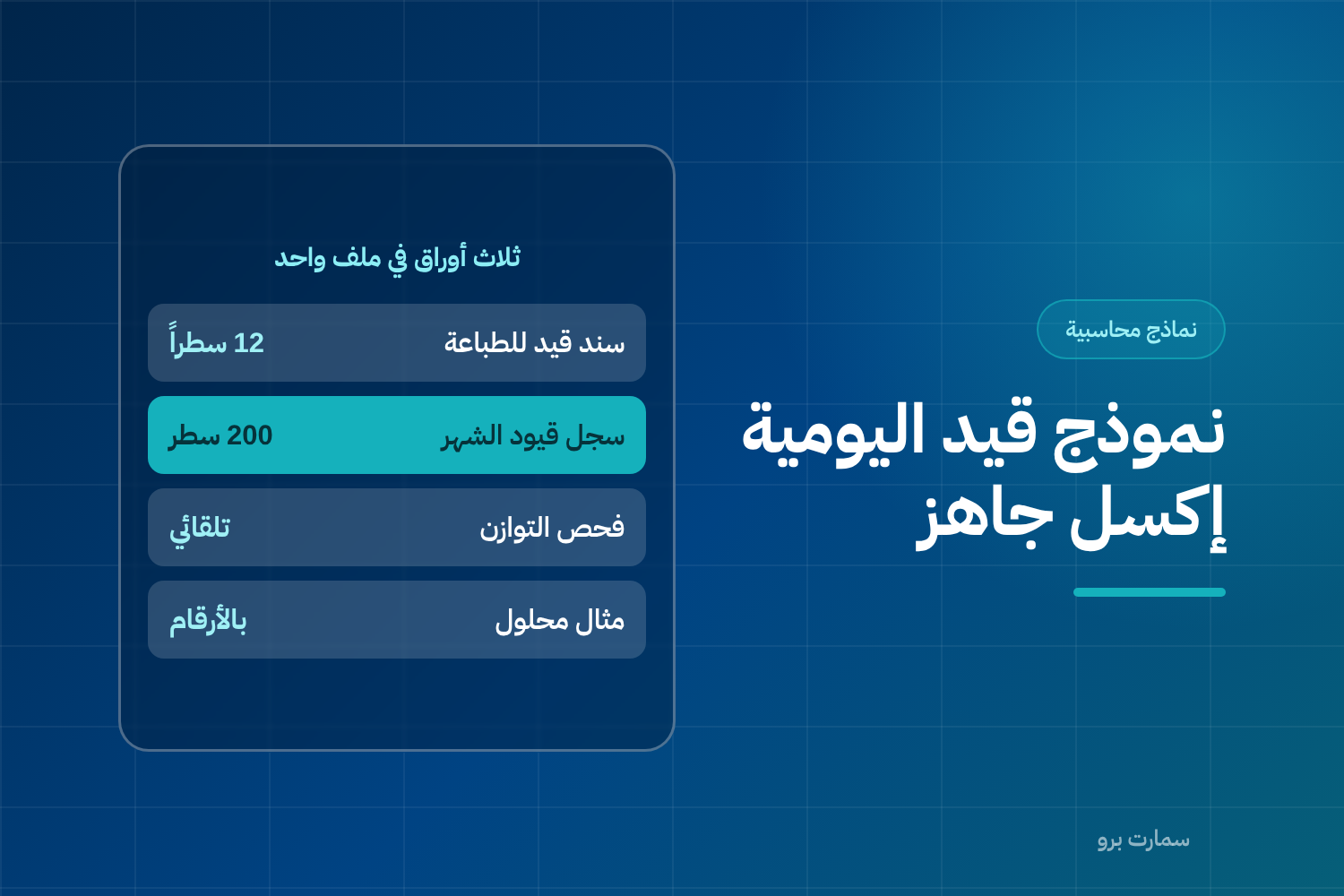
A journal entry Excel template is the simplest way to start recording your transactions with discipline. A journal entry records one financial transaction on a specific date, with equal debit and credit sides and a document that supports it. This template gives you that structure ready to use.
The template is free. It is designed for small and medium Saudi businesses that still keep their books in Excel or need a printed voucher for signing and archiving.
What does the journal entry Excel template contain?
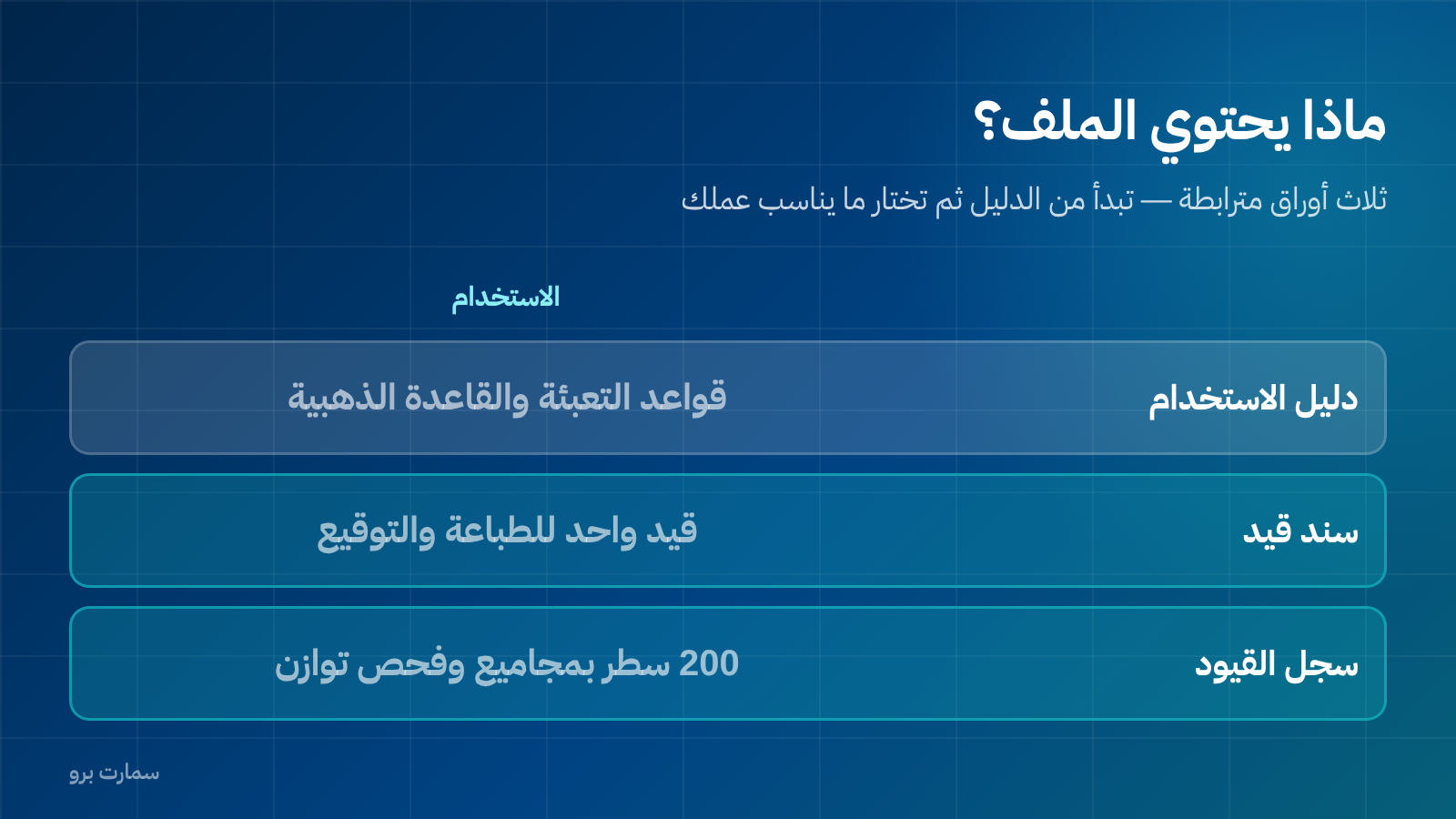
The file has three linked sheets:
- User guide: filling rules, the golden rule for the five account types, and points to check before you start.
- Journal voucher: a single 12-line entry form for printing, signing and approval, with fields for the business name, entry number, date and reference document.
- Journal register: a 200-line table for recording a full month of entries, with totals and a balance check at the bottom.
The first row of each table is a worked example: a cash sales invoice of SAR 10,000 with VAT of SAR 1,500, split correctly across three lines.
What is the golden rule behind the template?
Assets and expenses increase with a debit. Liabilities, equity and revenue increase with a credit. The opposite decreases each of them.
In every entry, total debits must equal total credits. If the two totals differ, the entry is missing a line or one of the amounts is wrong, and the template tells you immediately in the "Balance status" cell.
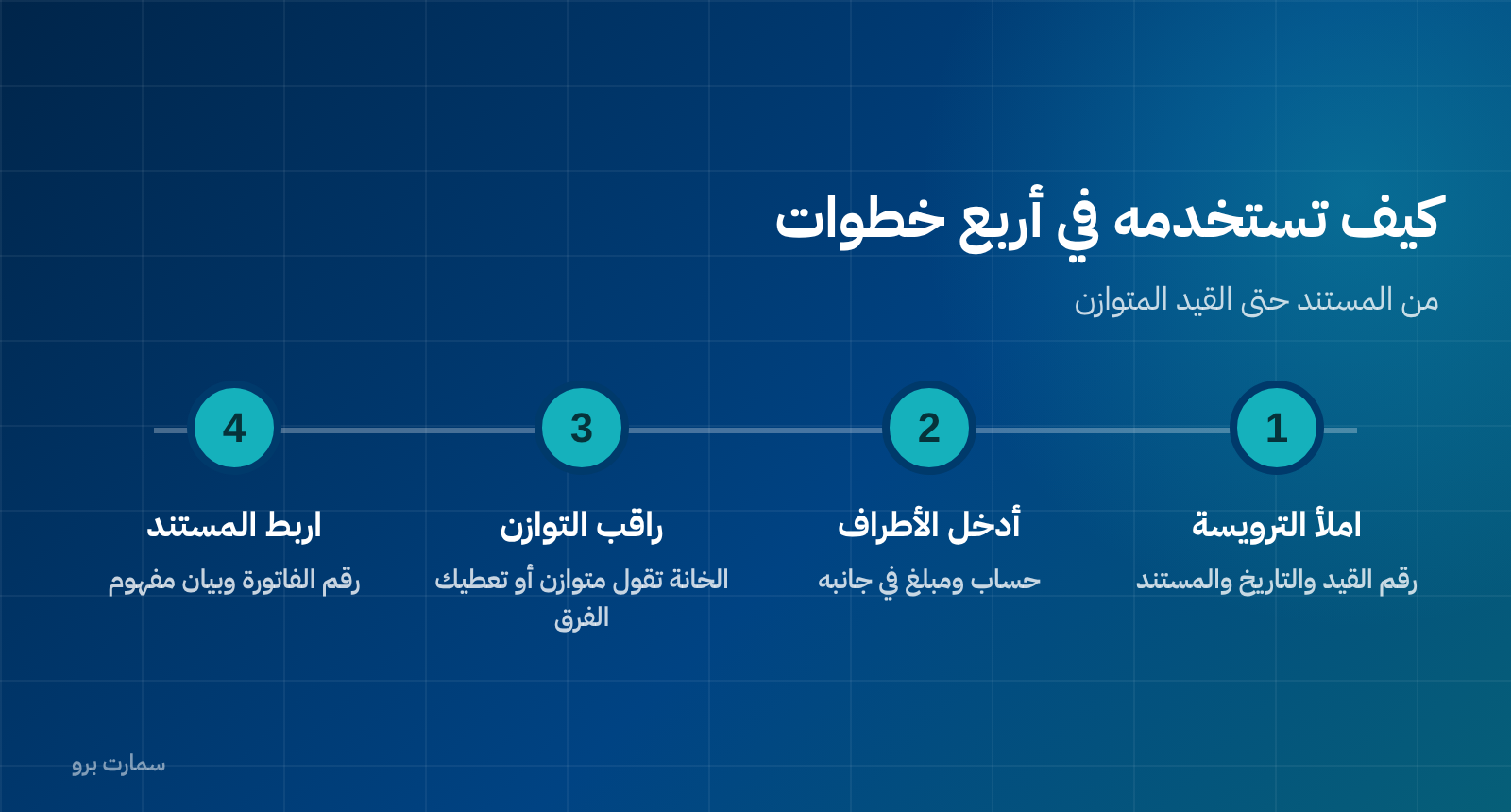
How do you use it in four steps?
- Fill in the header: business name, sequential entry number, date and reference document number.
- Enter the lines of the entry: account number, account name and description, then the amount on the correct side, debit or credit.
- Watch the balance status cell: it shows "Balanced" or gives you the exact difference.
- Link the entry to its document and write a description that someone reading the books a year from now will understand.
What are the five elements of a correct entry?
- Date: the day the transaction happened, not the day you typed it into the file.
- Accounts: the debit and credit accounts, taken from your chart of accounts.
- Amount: equal on both sides.
- Description: a short sentence explaining the transaction.
- Reference document: the invoice, receipt voucher or contract number.
The description and the document are the elements most often skipped, and they are exactly what you will be asked for in any audit or tax inspection.
Worked example: a credit sales invoice
You sold a service for SAR 20,000, with VAT of SAR 3,000, payable in 30 days:
- Accounts receivable → Debit 23,000
- Revenue → Credit 20,000
- Output VAT payable → Credit 3,000
When you collect a month later, record a separate entry: Bank debit 23,000, Accounts receivable credit 23,000.
Combining the two into one entry on the collection date is a common mistake. It hides the size of your receivables from you for the whole month.
Which common mistakes does the template prevent?
- Unbalanced entries: the check cell flags them before you save.
- Merging several transactions into one entry: the register forces one row per line.
- Vague descriptions such as "adjustment": there is a description field on every row.
- Ignoring VAT or folding it into revenue: the worked example shows the correct separation.
Before you fill in the first row
The template is a tool; discipline is what makes it useful. Three rules will save you from redoing work two months later:
- No entry without a document. Write the invoice or voucher number in the reference column, not "as instructed".
- A description someone else can understand. "September vehicle depreciation per schedule no. 3" is better than "monthly entry".
- Never edit a posted entry. Correct it with a reversing entry so the trail stays traceable.
From a regulatory point of view, an electronic invoice cannot be edited after it is issued; corrections are made with a credit or debit note recorded in a separate entry. Check the requirements that apply to you with the Zakat, Tax and Customs Authority (ZATCA).
How do you check your entries are correct before closing?
Open the journal sheet and check four things in order: the "Difference" cell is zero for every entry, every row has a date and a document number, account names are picked from the list rather than typed by hand, and no entry is dated outside the month you are closing.
These four checks take minutes and prevent most of what later shows up as differences in the trial balance.
When is Excel no longer enough?
The template is excellent for getting started and for a business with a limited number of transactions. But three signs mean you have outgrown it:
- More than one person edits the file, so multiple copies appear and nobody knows which is the latest.
- You need to link entries to inventory or e-invoicing, which Excel cannot do.
- Closing now takes more than two days because you are pulling data together from scattered files.
Read also
- Journal entries: how to write one step by step
- Debit vs credit: the golden rule
- Chart of accounts: how to build one from scratch
Try SmartPro the way you work
This template solves the documentation problem, but it does not link the entry to the invoice, the inventory or the profit report. In a connected accounting system, the invoice generates its own entry automatically, and you can move from any figure in a report to the entry and then to the document image in three clicks.
Request your free trial and enter one month of entries from your real books before you decide.
Article visuals
Frequently asked questions
Is the journal entry Excel template free?
Yes, the template is free to download and use within your business without restrictions. It works in any version of Microsoft Excel and can also be opened in Google Sheets or LibreOffice with the formulas still working.
What does the template contain?
It contains a journal sheet with columns for date, document number, account, description, debit and credit, plus a check formula that shows "Balanced" or "Unbalanced" automatically. It also includes an editable starter chart of accounts and a worked example of a credit sales invoice.
Can the template be used for e-invoicing?
The template is an internal recording tool and does not issue electronic invoices. E-invoicing requires a qualified system that connects to the ZATCA platform and applies the cryptographic stamp. Use the template to record entries, and issue invoices from a compliant system.
When should I move from Excel to an accounting system?
When more than one person edits the file and multiple copies appear, when you need to link entries to inventory and invoices, or when your monthly close takes more than two days because you are combining data from scattered files.