
Sandbox Testing Before Go-Live: How to Make Sure Your Invoices Will Be Accepted
Sandbox testing is what separates a calm go-live from a week of rejected invoices. Here are the cases to test, how to read the results, and when to move to production.
سامي الحيدري
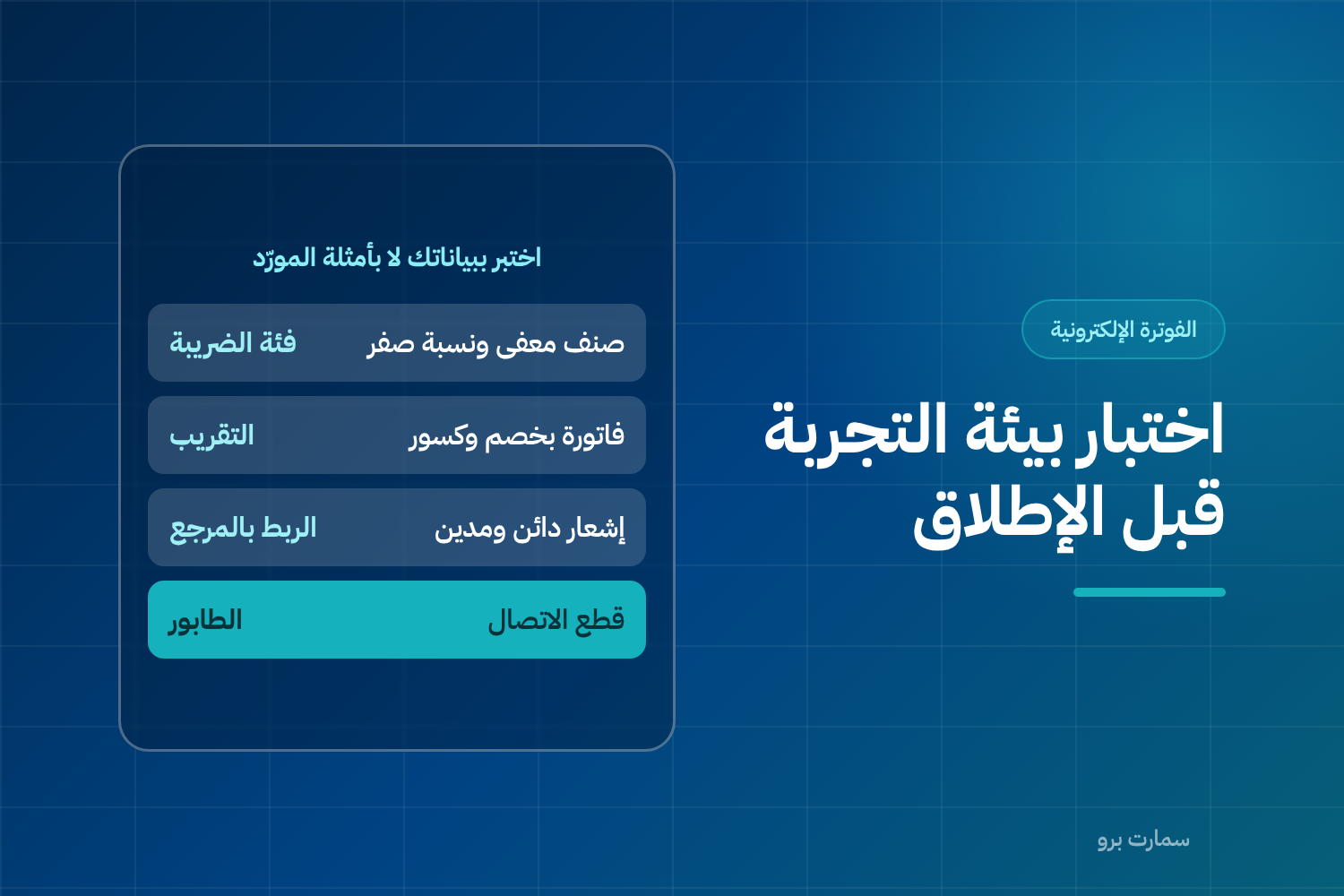
Sandbox testing is the step most often rushed, and the one you pay for in your first week after go-live. The idea is simple. A sandbox is a parallel environment where you send test invoices in exactly the same format as real ones. You find out whether they will be accepted before they become real.
The key difference: in the sandbox, a mistake costs nothing. In production, every mistake needs a credit or debit note to correct it.
Sandbox testing: what are you actually testing?
You are not testing whether the system works. The vendor already knows that. You are testing whether your own data gets through. So the first rule is to test with your real items, customers and prices, not with the vendor's ready-made samples.
The sample invoices any vendor demonstrates always pass. Your own invoices are the ones that reveal problems.
Which cases should you test?
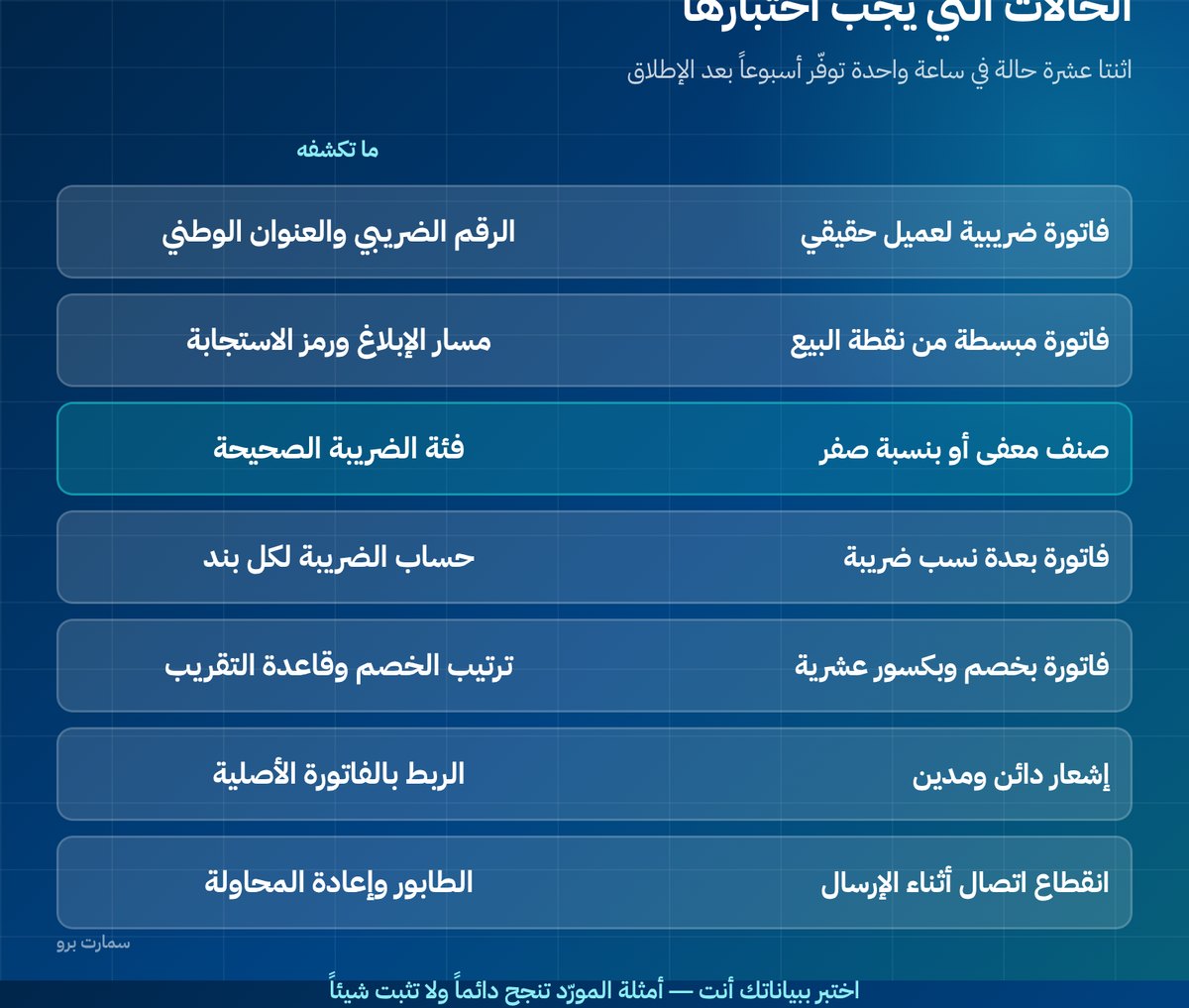
| Case | What it reveals |
|---|---|
| Tax invoice for a real customer | Whether the VAT number and national address are correct |
| Simplified invoice from the POS | The reporting path and the QR code |
| Item at the standard VAT rate | The default tax category |
| Exempt or zero-rated item | The correct tax category |
| Invoice with several VAT rates | VAT calculated per line |
| Invoice with a line-item discount | Whether the discount is applied before or after VAT |
| Invoice with decimal amounts | The rounding rule |
| Credit note against an earlier invoice | The link to the original reference |
| Debit note | The correct direction |
| Invoice with a large amount | Field limits |
| Customer without a VAT number | The logic for choosing the invoice type |
| Connection drop during sending | The queue and retry behaviour |
Twelve cases take about an hour, and they save a week of fixes after go-live.
How do you read the test results?
Each attempt has three possible outcomes, and you need to understand the difference between them:
- Accepted: the invoice is completely valid.
- Accepted with warnings: it passes, but something needs fixing. Do not ignore it, because today's warning can become a rejection after an update.
- Rejected: it contains an error that prevents acceptance, and it comes with a code and a reason.
Ask the vendor to show you the full response text, not just a green tick on the screen. Many systems display "Sent" and hide the warnings.
Who should attend the testing session?
This is not a purely technical session. You need at least three people:
- The accountant: judges whether the tax categories, amounts and rounding are correct.
- A salesperson or cashier: tries the screen the way they will use it every day, and spots what is awkward in practice.
- Your project owner: records the issues and follows them through to closure.
The accountant's absence from this session causes most of the tax-category errors that appear after go-live. The vendor does not know which of your items are exempt and which are taxable.
Record the result of every case in writing
Open a simple sheet with four columns: case, result, note, and who will fix it. Do not end the session until every row has an owner and a due date.
This sheet is what prevents the familiar line after go-live: "We tested it and it was working."
What mistakes do businesses make in the testing itself?
- Testing with the vendor's data instead of yours. It always passes and proves nothing.
- Testing only one case, usually a simple tax invoice. The surprises start with the first exempt item.
- Not testing actual printing on the paper and printer you really use.
- Letting the vendor test alone without you present. Attend, and ask about every message that appears.
How long does testing take?
One to two hours for a single session covering all twelve cases, if your data is ready. It takes longer if errors are found that need an update from the vendor. That is why it is better to test two weeks before your go-live date, not two days.
Do not make it one long, tiring session. Two short sessions with a day in between to fix issues are better than one session where issues are closed in a hurry.
When should you move to production?
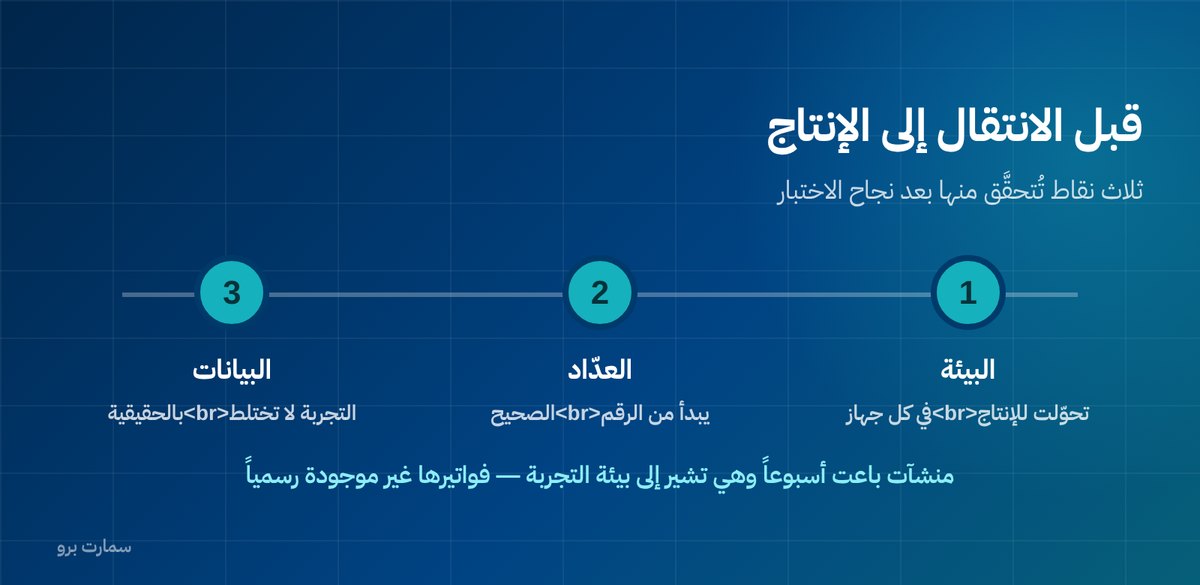
When every case above passes without rejection and the warnings have been resolved. Before switching, confirm three things:
- The environment setting has actually switched to production on every device, not just the test device.
- The invoice counter starts from the correct number and does not carry over test invoice numbers.
- Test data is not mixed with real data in the same database.
The first point is the one most often forgotten. One business completed testing successfully, then sold for a full week while still pointing to the sandbox, and discovered that its invoices did not officially exist.
Why does print testing matter?
An invoice can be technically valid and still unusable in practice. Print a sample on the paper and printer you actually use, and check that:
- The QR code scans with an ordinary phone camera on the first try.
- The numbers are clear and do not overlap when amounts are long.
- Arabic text displays correctly, not broken up or reversed.
- The invoice fits the paper width without being cut off at the edges.
Thermal printers in particular show problems that appear neither on screen nor on an office printer.
What should you test after go-live?
Testing is not a one-off. After any system update, new branch or change to your items, re-test at least three cases: a tax invoice, an invoice with an exempt item, and a credit note.
Ten minutes a week catches what could otherwise pile up for a month.
Details of the sandbox, the requirements for moving to production and the validation rules are published in the technical guides of the Zakat, Tax and Customs Authority (ZATCA). For the wider picture, see our ZATCA e-invoicing guide.
Key takeaway: Test your own items, customers and prices across all twelve cases in the sandbox, with your accountant present, and switch every device to production only when nothing is rejected.
To see how SmartPro handles Fatoora Phase 2 invoices with your own data, start a free trial.
Read also
Frequently asked questions
What is the purpose of sandbox testing?
It confirms that your own invoices, with your real items, customers and prices, will be accepted before they become real. In the sandbox a mistake costs nothing, while in production every mistake needs a credit or debit note to correct it.
Which cases should be tested in the sandbox?
Test a tax invoice for a real customer, a simplified invoice from the POS, an exempt or zero-rated item, an invoice with several VAT rates, one with a discount and one with decimal amounts. Also test a credit note and a debit note, a customer without a VAT number, and a connection drop during sending.
When should I move from the sandbox to production?
Move when every test case passes without rejection and all warnings have been resolved. Before switching, confirm that the environment setting has changed on every device, not just the test device, that the invoice counter starts from the correct number, and that test data is not mixed with real data.
Is sandbox testing a one-time task?
No. Re-test at least three cases, a tax invoice, an invoice with an exempt item and a credit note, after any system update, new branch or change to your items. Ten minutes a week catches what could otherwise pile up for a month.